We designed the Pay Button and Payment Method Selector components of FinDock Payment Experiences for easy implementation in Flows. The key ingredient here is the Configuration Editor extension built into the core LWC technology of these components.
The diagram below gives you an idea of how the different building blocks work together in your custom digital experience development options.
The FinDock Pay Button Lightning Web Component (LWC) defines the payment details for your payment experience. In practice, this means you use the built-in configuration builder to define the payment intent payload that your Flow sends to the Payment API. The Pay Button represents all the functionality the API offers.
The Pay Button can be added to your own flows or accessed from one of FinDock’s Flow templates, as shown here.
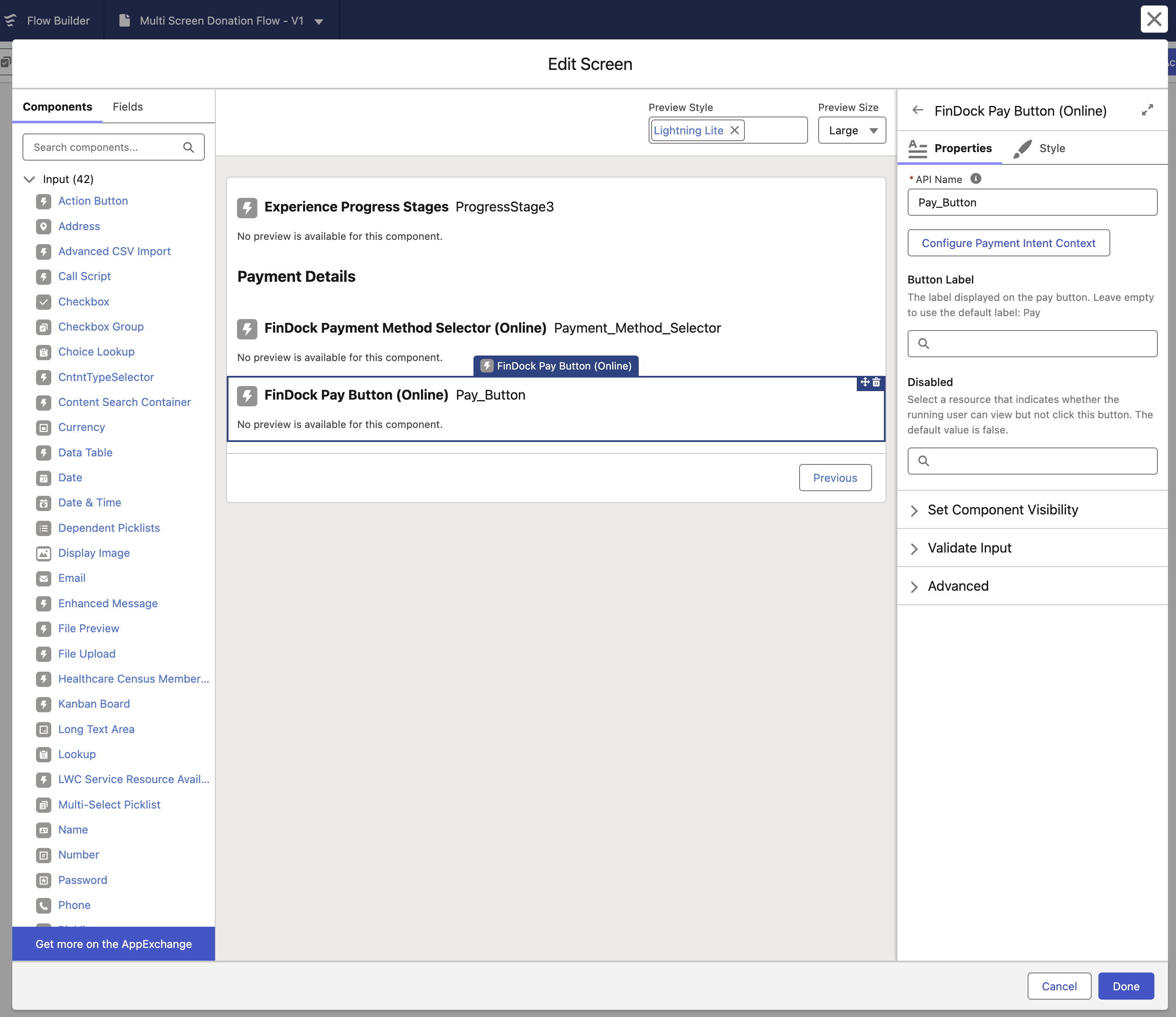
The component has two additional settings controlling its behavior:
- Button label: can be used to change and/or translate the text shown on the button. Both a static text value as well as a Flow resource can be used.
- A Disabled: behaves like the standard Flow Action Button component’s disabled setting. This can be used to control whether the button can or can not be clicked, based on whether required fields have been filled and input values pass validation. A simple formula field could be used to control this behavior.
Click Configure Payment Intent Context to launch the configuration editor. The main view presents the different elements of a Payment Intent request.
The request configuration is broken down into the following sections, which reflect the overall structure of a Payment Intent payload callout to the Payment API:
- Payer details, for Contact, Account or Person Account records.
- Payment settings for one-time or recurring payments, including amount, currency, frequency and dates.
- Payment method settings like processor, payment method and target.
- General settings, like where to direct the payer upon success or failure. This can be an Experience Cloud site page or any other webpage.
- Optional Package Actions that store data related to the payment for specific Source packages like Gift Aid or Fundraising tributes.
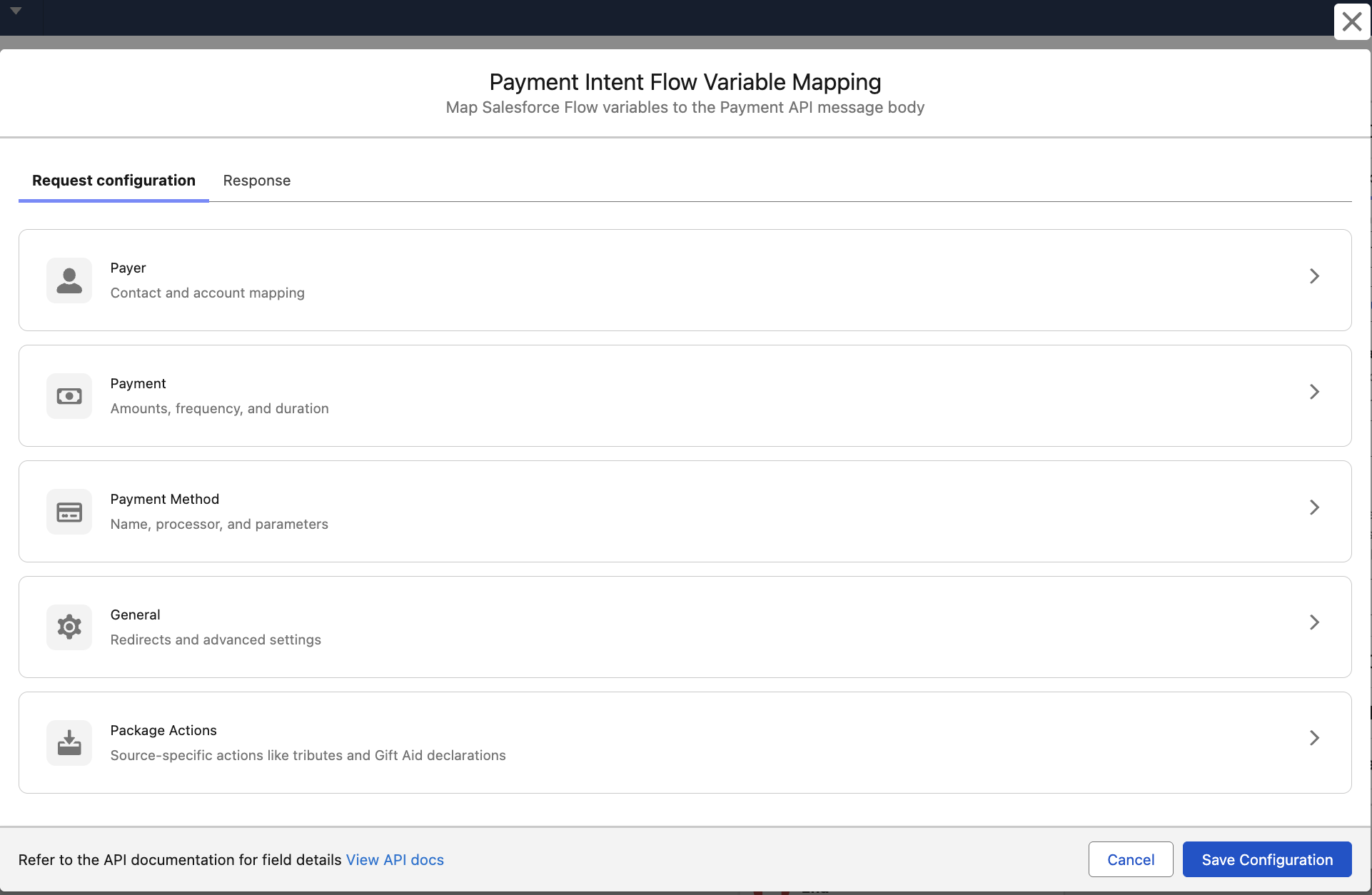
You can set the values in multiple ways, using familiar Flow features.
| Value Type | Example |
|---|---|
| Hardcoded | Static URL for the Success URL field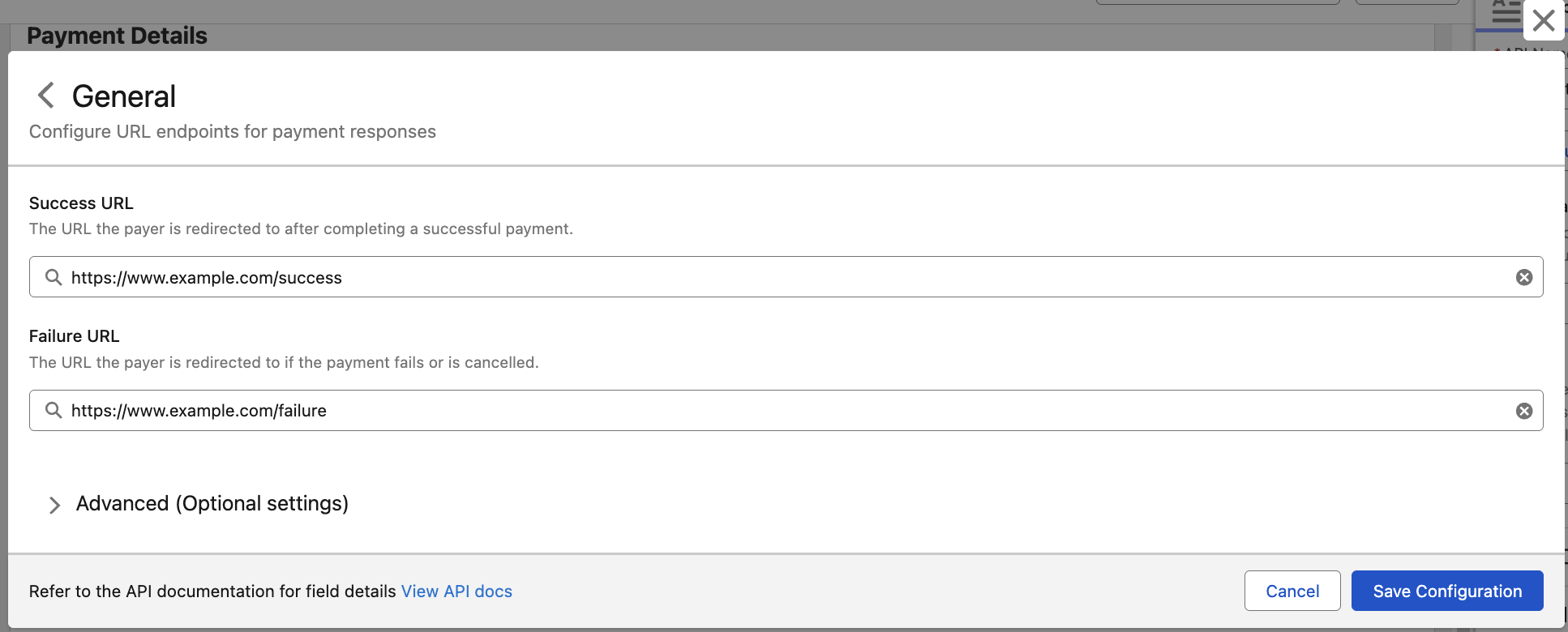 |
| Single Flow resource | Flow resource with a single value, like the output value of a Frequency selection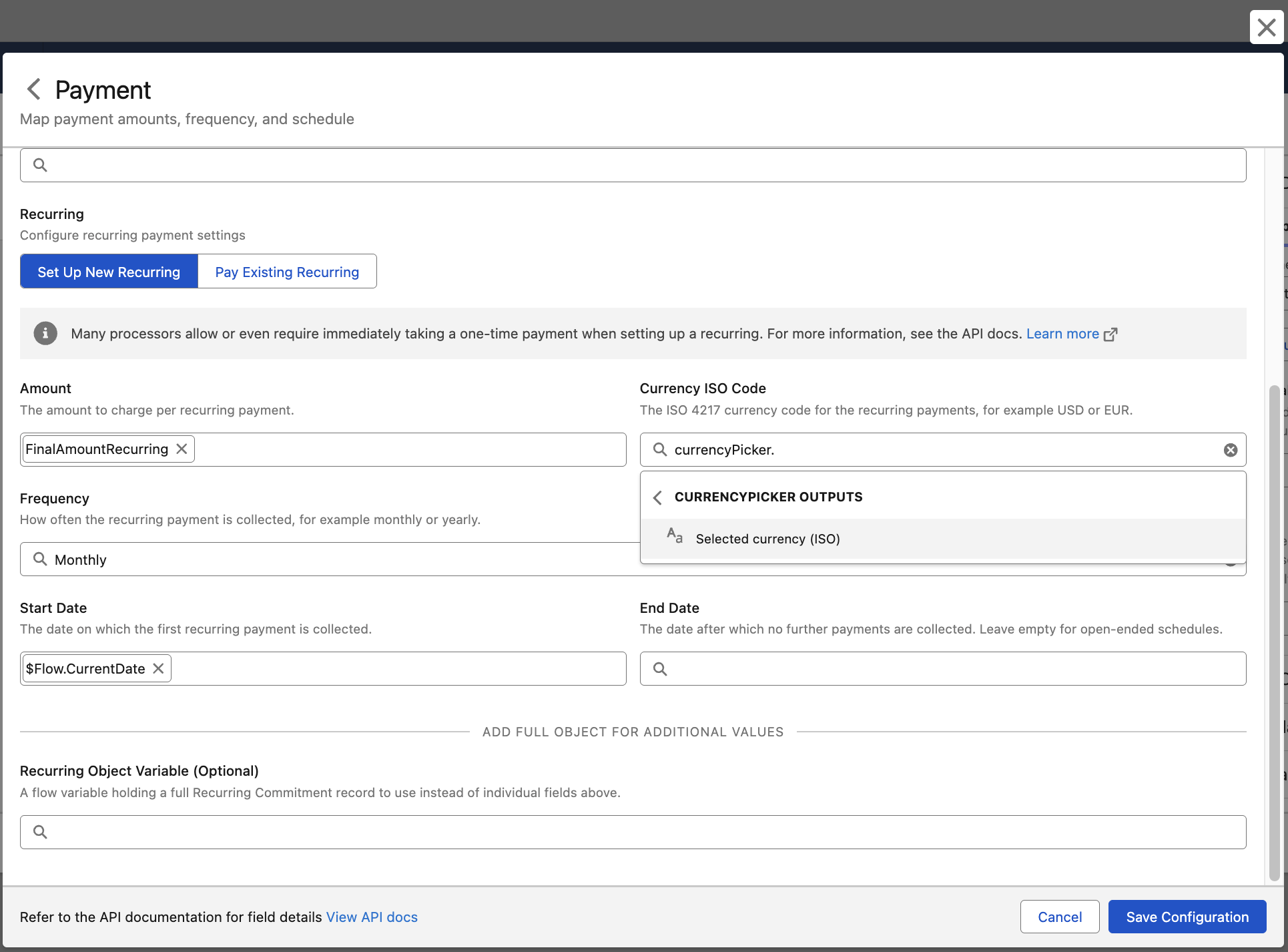 |
| Variable Flow resource | Flow Variable Object output containing multiple values, like a Contact object built by an Assignment step in the Flow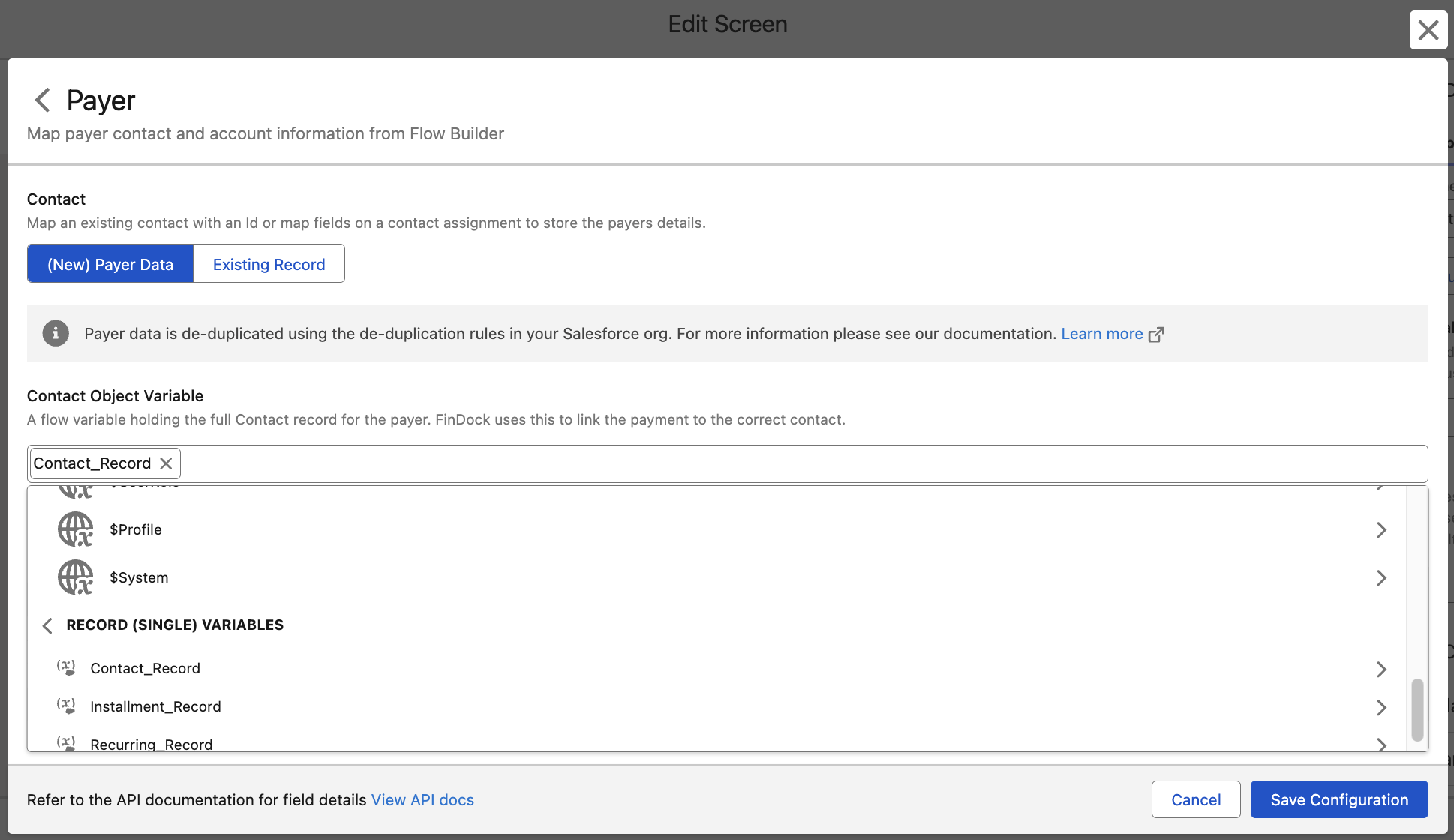 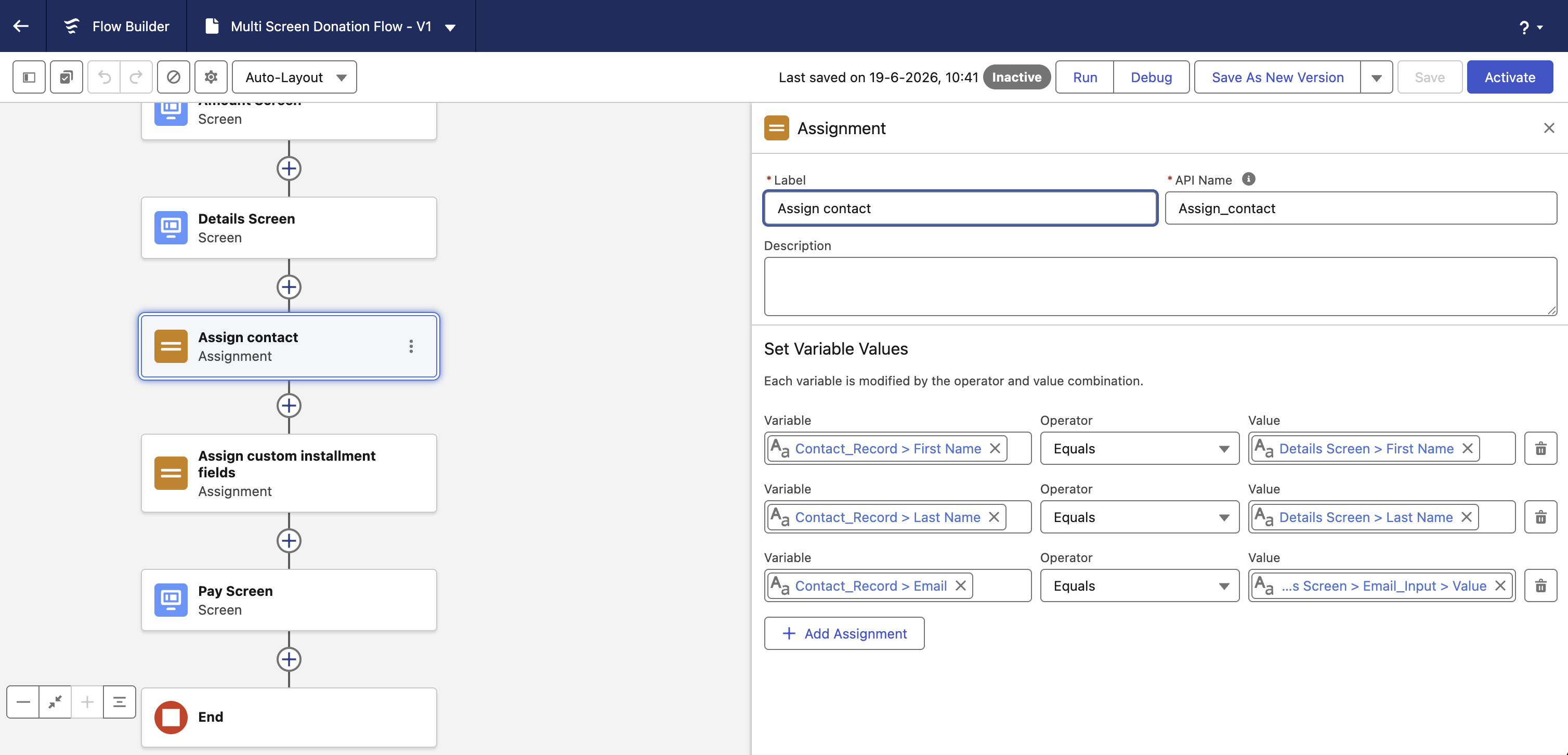 |
| LWC output | LWC with single or multiple values, like the output of Payment Method Selector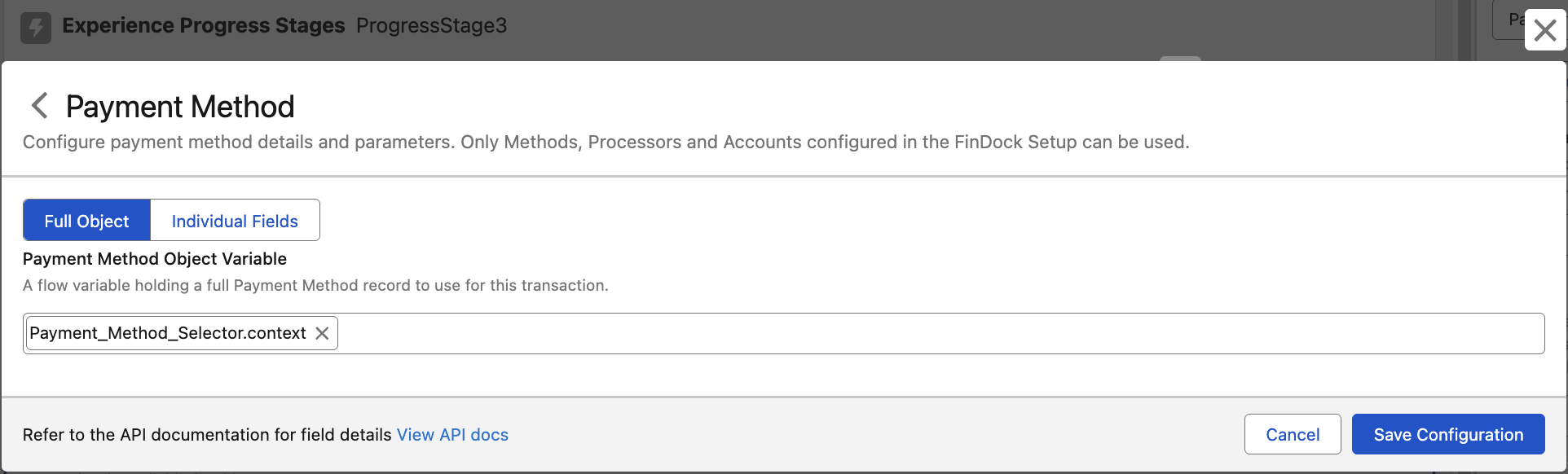 |
The FinDock Payment Method Selector is a Lightning Web Component (LWC) that can be embedded in any Lightning-enabled context, including Flows and other LWCs. The selector uses advanced logic and a custom configuration editor to simplify the tasks of designing payment method selection in a digital payment experience.
The Payment Method Selector can be added to your own flows or accessed from one of FinDock’s Flow templates, as shown here.
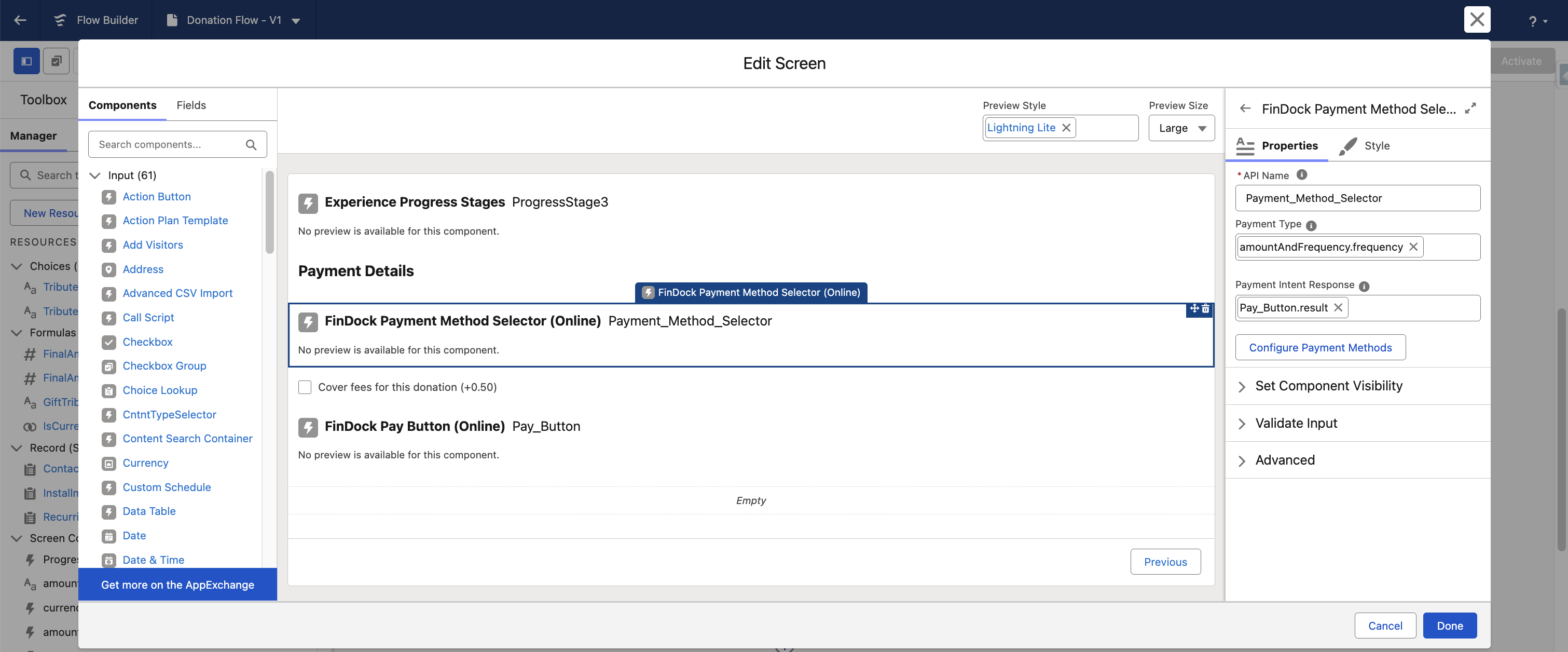
The component has standard Properties and Style options you can adjust to fit your needs. In addition, you need to define the Payment Type and Payment Intent Response properties.
Payment Type can be configured as:
- Empty: component uses the default frequency (usually oneTime)
- Static: component uses the provided string value
- Dynamic: component uses a Flow variable to determine frequency
The Payment Intent Response property allows the response from the Pay Button component to be passed back to the Payment Method Selector if there is an error. The best approach for this property is to use the dynamic result value of the Pay Button component (as shown in the screenshot above).
Click Configure Payment Methods to launch the configuration editor. The main view presents a table of all active payment methods in the org, as well as basic settings like Status and Default.
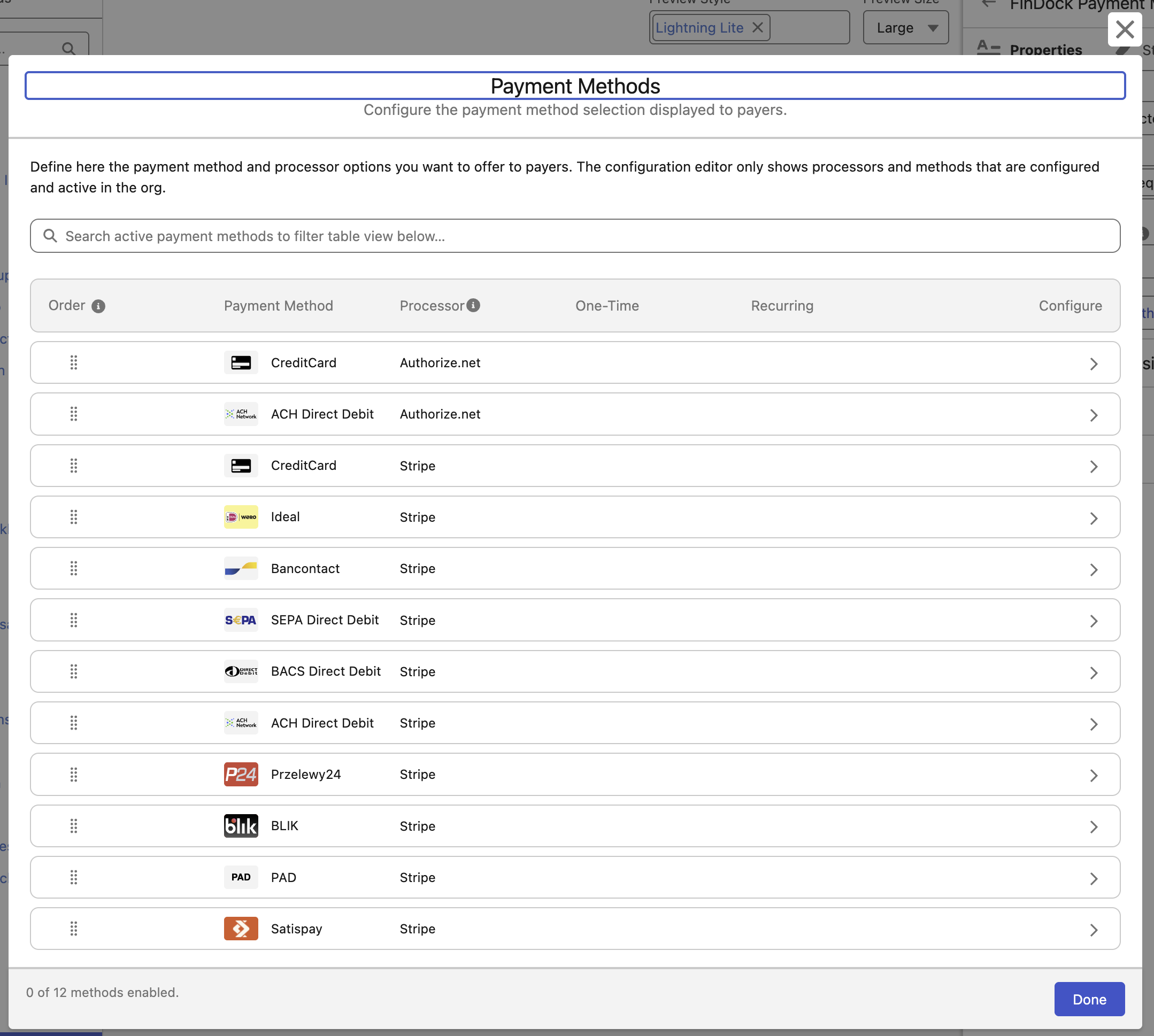
To configure a specific payment method, select the row or click the chevron icon to the right under the Configure column. This opens a details screen where you can configure the payment method settings for both one-time and recurring payments.
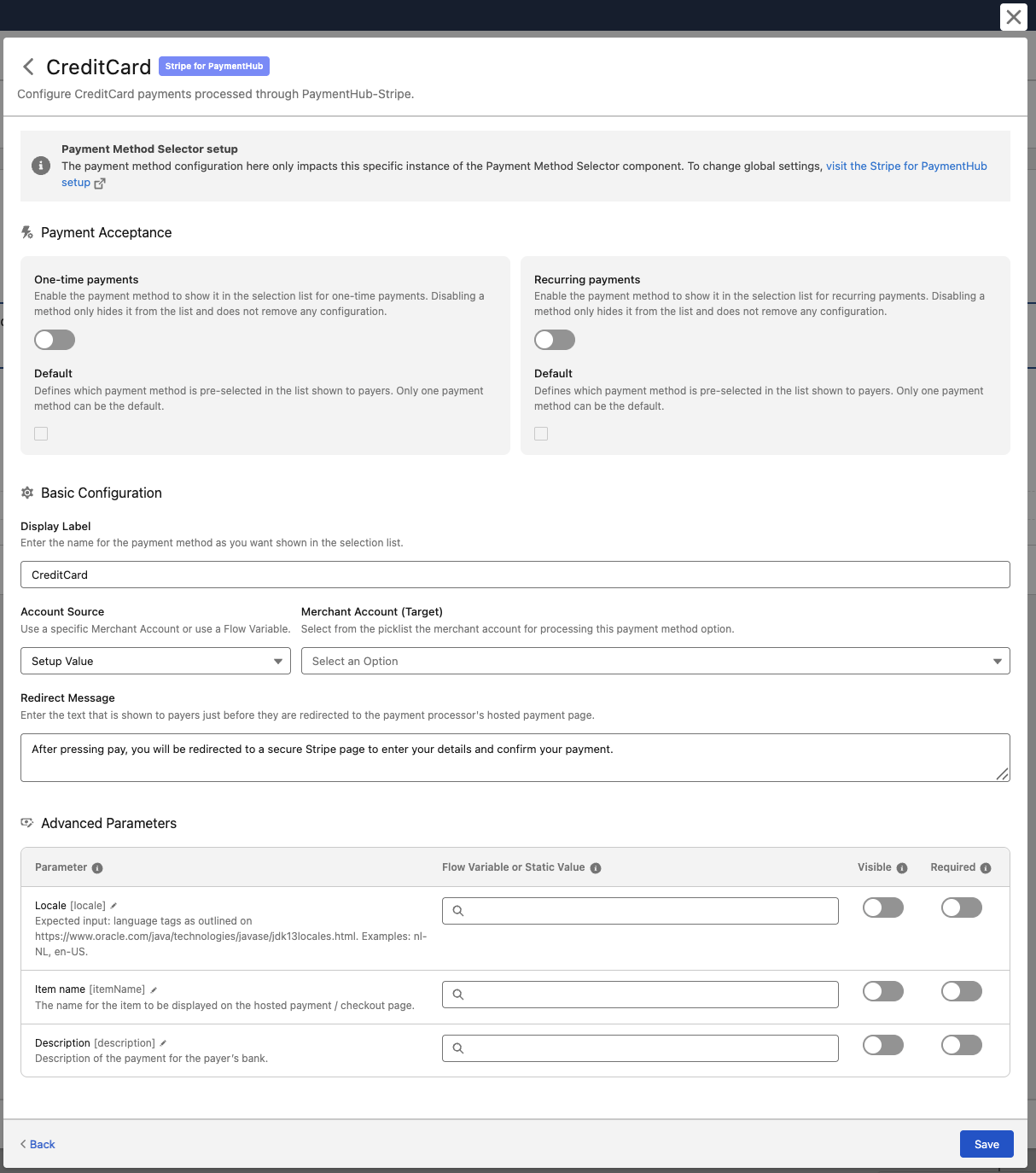
Note that the basic settings on the main view are also presented here in the Payment Acceptance section of the setup.
If a managed FinDock component encounters an error, a PAYMENT_ERROR message is broadcast to Salesforce event-handling channels. For Screen Flows, the best channel for error handling is using Flow Attribute Change Events. For more details, see Error handling.