FinDock processes and reconciles online payments automatically based on calls to the FinDock Payment API and notifications (like webhook events) from Payment Service Providers (PSPs).
An API call or notification is first captured as a Message record. From the message, FinDock creates an Inbound Report record that is in turn processed and matched through Guided Matching.
The entire content of an API call or incoming notification is stored in the Raw Message field on the inbound report. Data in the Raw Message field can be parsed and used to improve and extend your reconciliation using custom Guided Matching rules.
FinDock includes Managed and Suggested rules for automatic matching. You can extend these with your own Guided Matching rules. Some of the managed rules can also be customized to suit your business needs.
If processing an inbound report fails, FinDock sets the status of the inbound report to Failed. We recommend implementing an automated procedure to handle such cases, for instance, using Guided Review.
To maintain data integrity and quality, payment intents captured through the Payment API leverage Salesforce deduplication features alongside data enrichment through Guided Matching.
Deduplication is focused on the Account, Contact and Payment Profile records. Payment Profiles are deduplicated automatically by FinDock. Contact and Account (Person Account and Business Account) are automatically deduplicated using Salesforce deduplication rules.
The deduplication processing rules need to be configured in Salesforce before FinDock can apply deduplication and data enrichment. Confirm with your Salesforce administrator the correct set of rules for your business case.
Whether you are using out-of-the-box front ends to the Payment API, like Giving Pages, or a custom Payment API integration, you always need to ensure you capture the details that help deduplicate payers (contacts and accounts). Ideally you get payer details that maximize deduplication accuracy and provide enough additional details to make deduplication of edge cases easy.
Key data points to capture for payer deduplication typically include first name, last name, email address and phone number. There are many variations and possibilities, however, to consider. This deduplication guide from Salesforce Ben is a great place to start if you are unfamiliar with Salesforce deduplication scenarios.
Through Guided Matching, deduplication is extended through two steps. First, you find duplicates, then, based on the outcome, you create or update records.
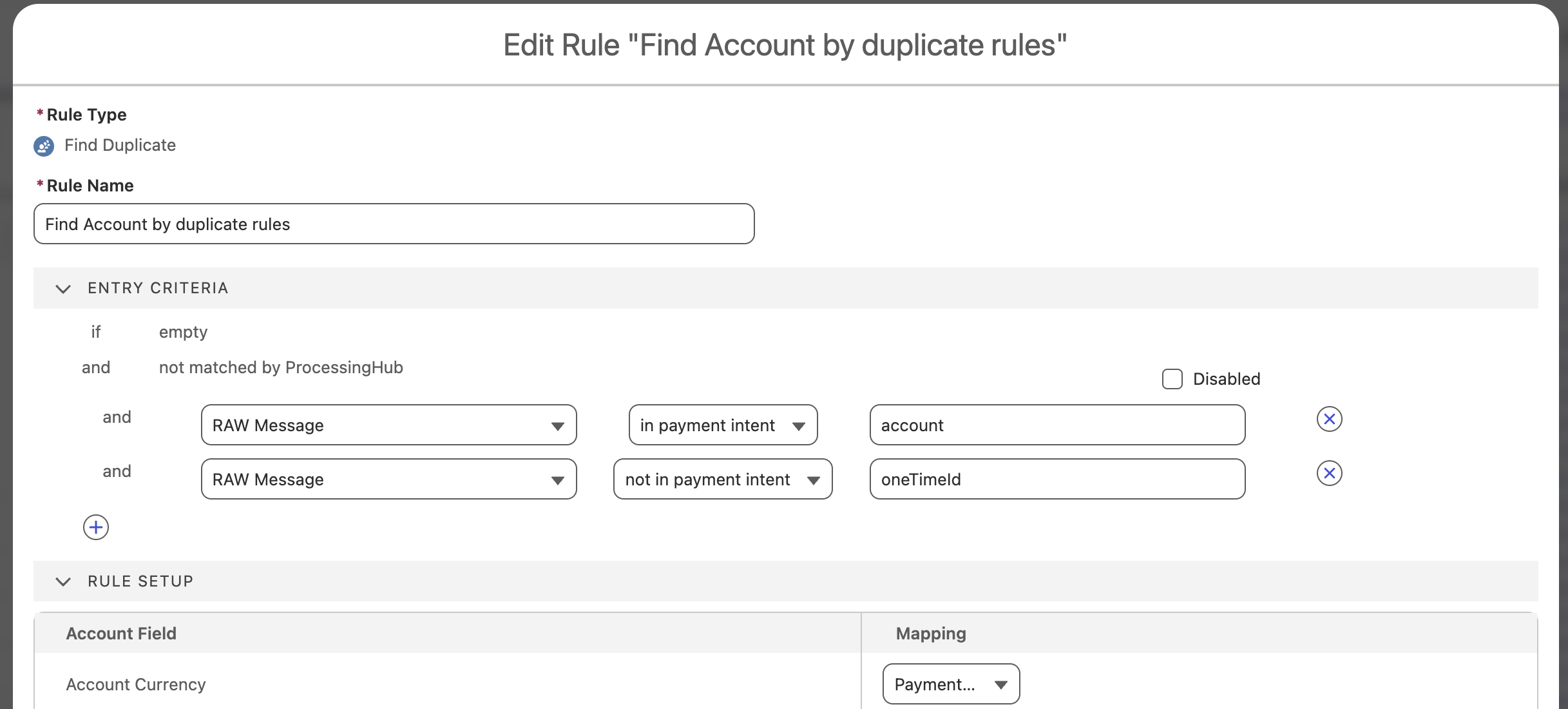
Duplicates are found through the Find Account by duplicate rules and Find Contact by duplicate rules in the Guided Matching setup for report type PaymentIntent (subtype Default).
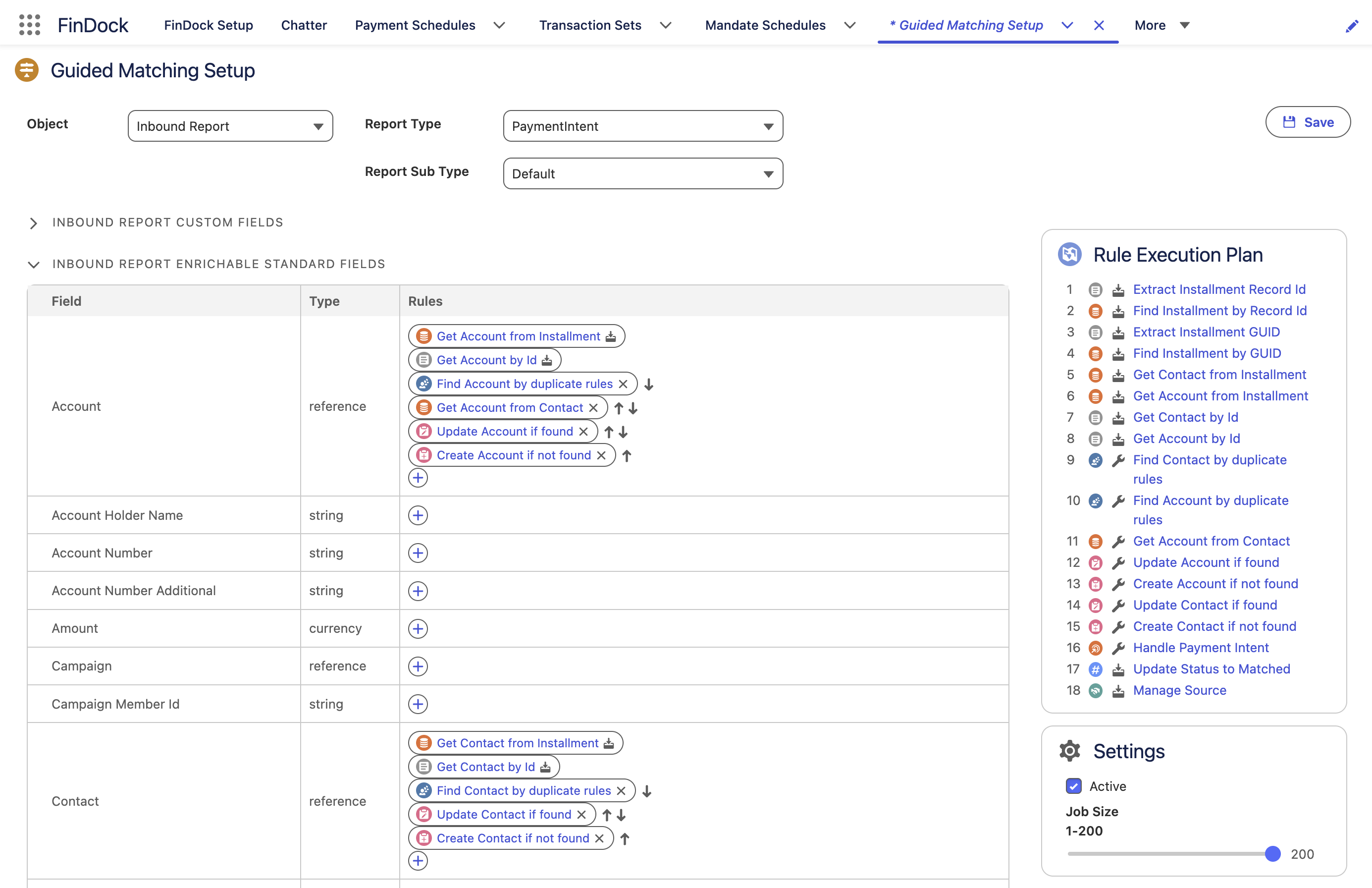
You can modify these Find duplicate rules or remove the rule from the respective field if you do not want to deduplicate Account and/or Contact records.
Once you save changes to suggested rules, they cannot be automatically restored to their original state without reinstalling the package.
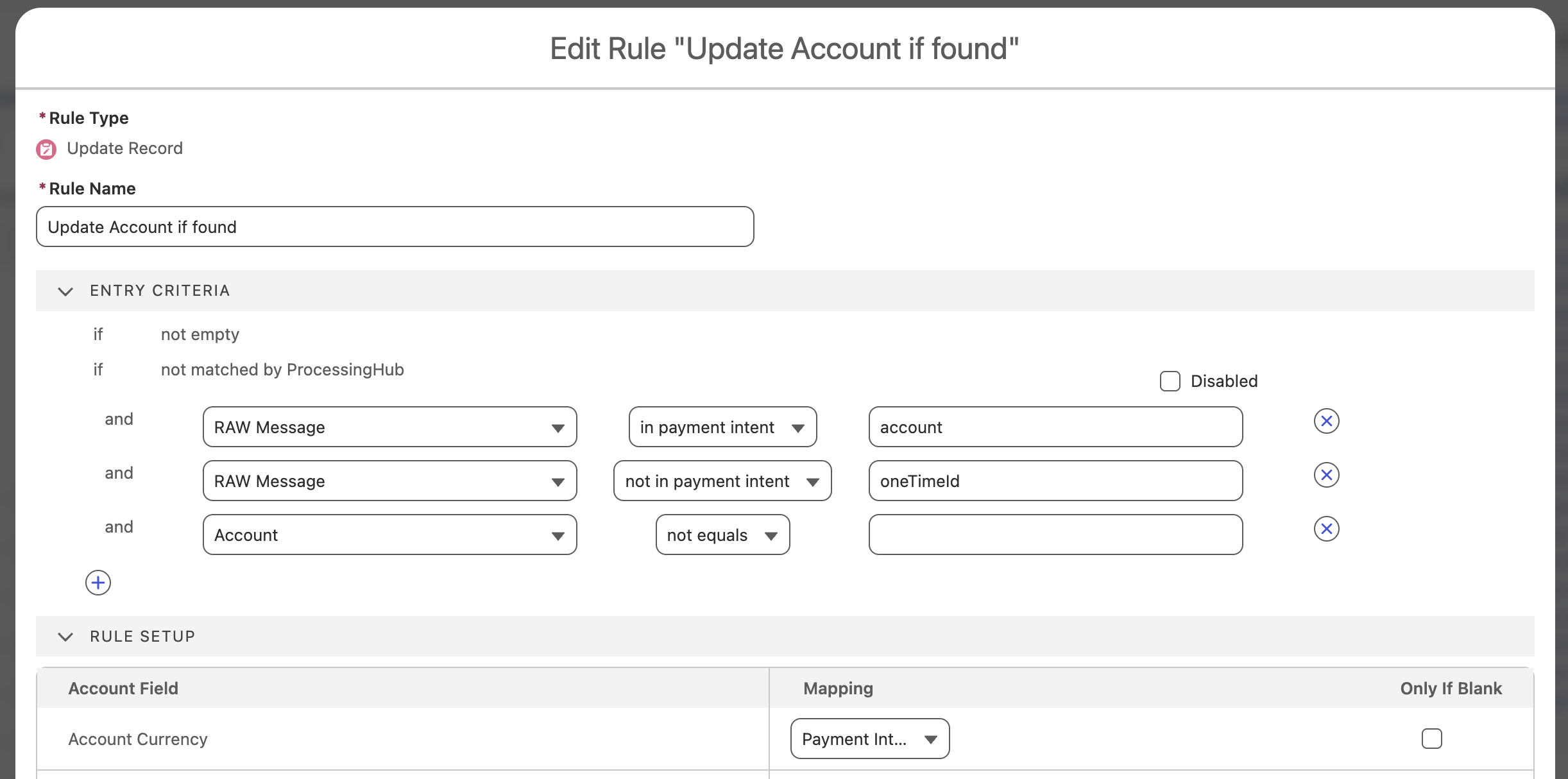
By default, if no duplicates are found, a record is created through the Create Account if not found and Create Contact if not found rules. If a duplicate record is found, the record is instead updated through the Update Account if found and Update Contact if found rules.
You can adjust the create and update default behavior by:
- Removing and/or replacing the rules with your own rules
- Modifying the Rule Setup for the existing Create record and Update record rules.
You can choose to set the value of the updated record to be the value of the PaymentIntent message, a field on the Inbound Report (for instance using an Account you passed in your API message instead of taking the Account from the found Contact) or a hardcoded value. If you do not wish to override existing values on a duplicate record that was found in your environment, you can select Only if blank.
In some cases, you may want to modify how FinDock sets relationships between records. This is defined in the Handle Payment Intent rule of the Guided Matching setup for PaymentIntent.
You can set the Primary Relation to Contact or Account. Both the installment and the payment profile are then related to this record.
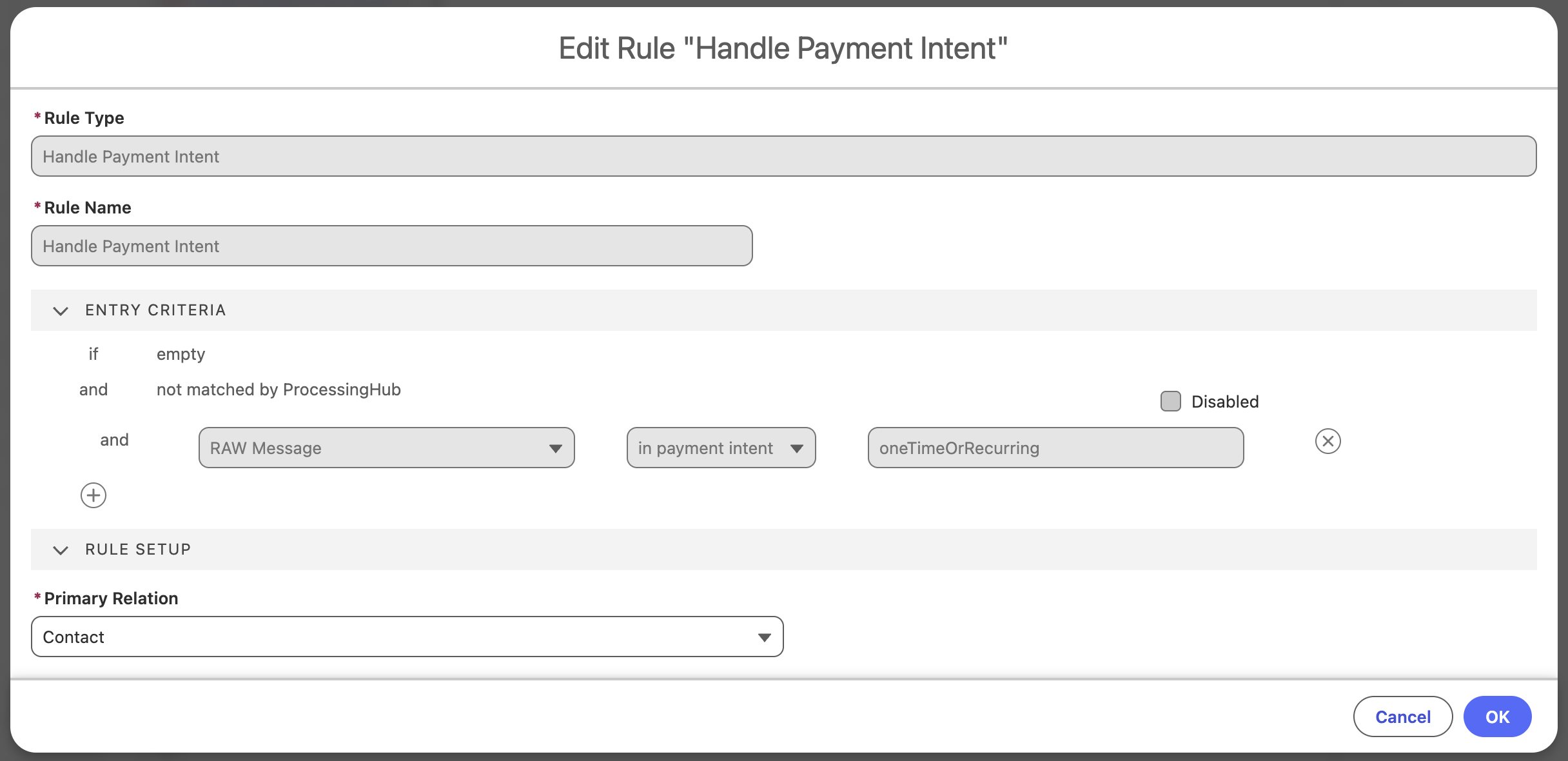
By default, relationships are set according to the following logic:
- If the inbound report only has a contact -> link installment and payment profile to contact.
- If the inbound report only has a account -> link installment and payment profile to account.
- If the inbound report has both contact and account -> link installment and payment profile based on Primary Relation setting.
- If the inbound report has no contact nor account -> set inbound report to Failed.
The PaymentIntent is the initial API call that creates data in Salesforce about a new online payment action. Based on the inbound report, FinDock creates or updates records for objects like Account, Contact, Payment Profile, Mandate, Installment and Recurring Payment.
You can extend processing logic for payment intents by adding custom Guided Matching rules:
- Go to the FinDock Setup tab and click Guided Matching in the left-hand menu.
- On the Guided Matching Setup tab, select Inbound Report from the Object picklist, and then for Report Type, select PaymentIntent.
- Select the Report Sub Type you want to modify:
- Default: the default subtype used for calls to
/PaymentIntentendpoint. If you want to use the same logic for all payment intents, modify this Guided Matching setup. - Custom subtype: You can create custom subtypes to split out processing logic for specific payment intent API calls. Manually create a Guide Matching Setup record for type PaymentIntent and subtype
your_custom_subtype(no spaces in name) and add your rules to that setup. To trigger the specific processing logic, add the name as theReportSubTypeparameter of the Settings object.
- Default: the default subtype used for calls to
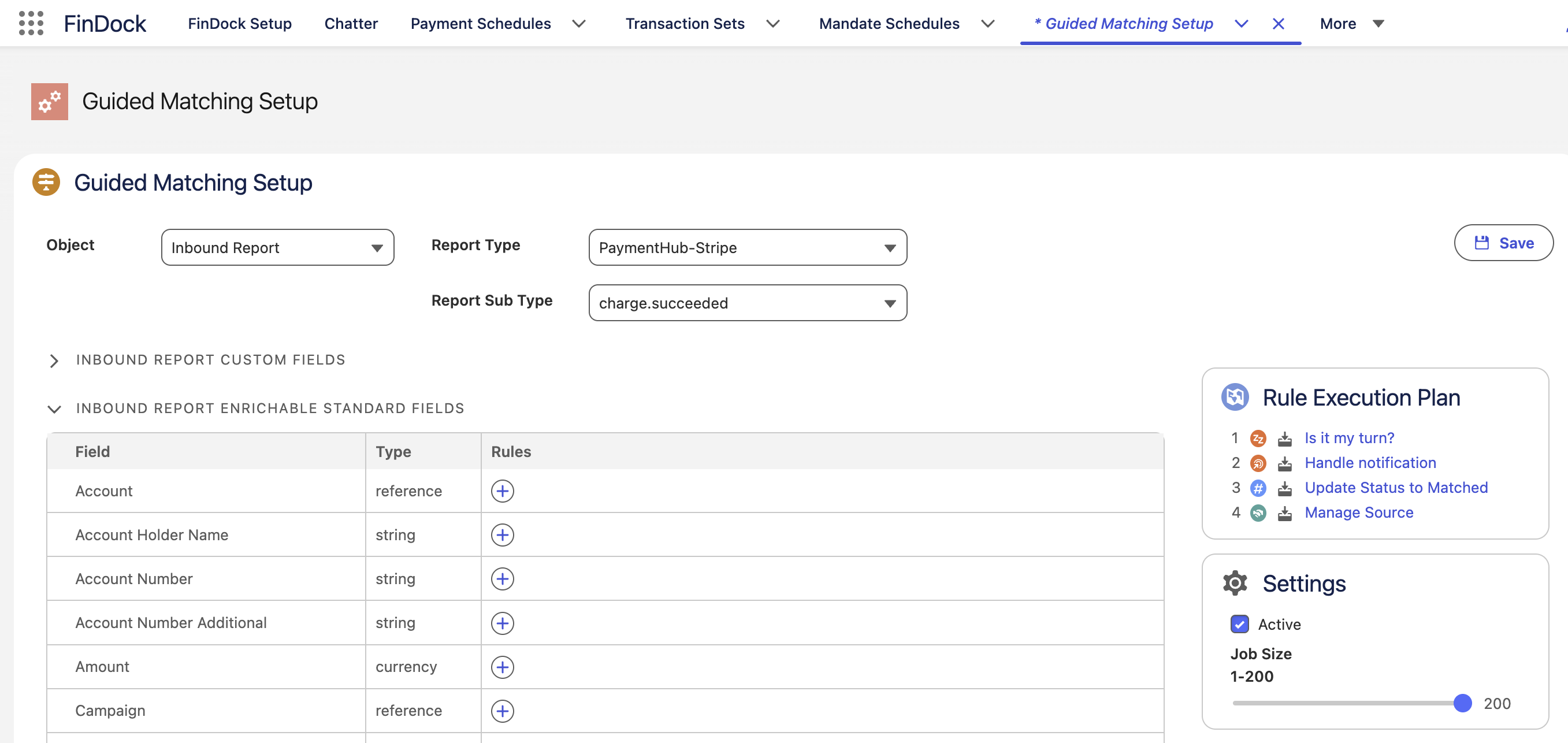
PSPs send webhooks and other notifications to FinDock for updating the status of a payment in Salesforce. FinDock uses the resulting inbound reports to create and update records for Payment Profile, Mandate, Installment, and so forth. You can extend processing logic per PSP event, such as charge.succeeded and payment.failed. Each PSP has its own events which FinDock defines as inbound report subtypes.
Out-of-the-box, FinDock handles the most important payment processing events from PSPs. PSPs send may send notifications for other events for which FinDock creates inbound reports. If you want to process these inbound report subtypes, simply configure Guided Matching setups for them.
You can extend processing logic for inbound notifications by adding custom Guided Matching rules:
- Go to the FinDock Setup tab and click Guided Matching in the left-hand menu.
- On the Guided Matching Setup tab, select Inbound Report from the Object picklist, and then for Report Type, select, select the payment extension package for the PSP, like PaymentHub-Stripe for Stripe.
- From the Report Sub Type picklist, select the specific event you want to customize.