The Field Mapper enables detailed customization of how the FinDock Installment and Gift Transaction records are synced at field level. The mapping eliminates the need for custom triggers or process builders to keep installments and opportunities synced. For example, if you have a custom field on Gift Transaction that needs to be copied to installments, you can define a mapping for that field rather than build custom automation.
The Fundraising extension settings include Custom Mapping and FinDock Managed Mapping. The latter is provided as reference of the mapping details maintained by FinDock. The Custom Mapping table is where you can add your own mappings as needed.
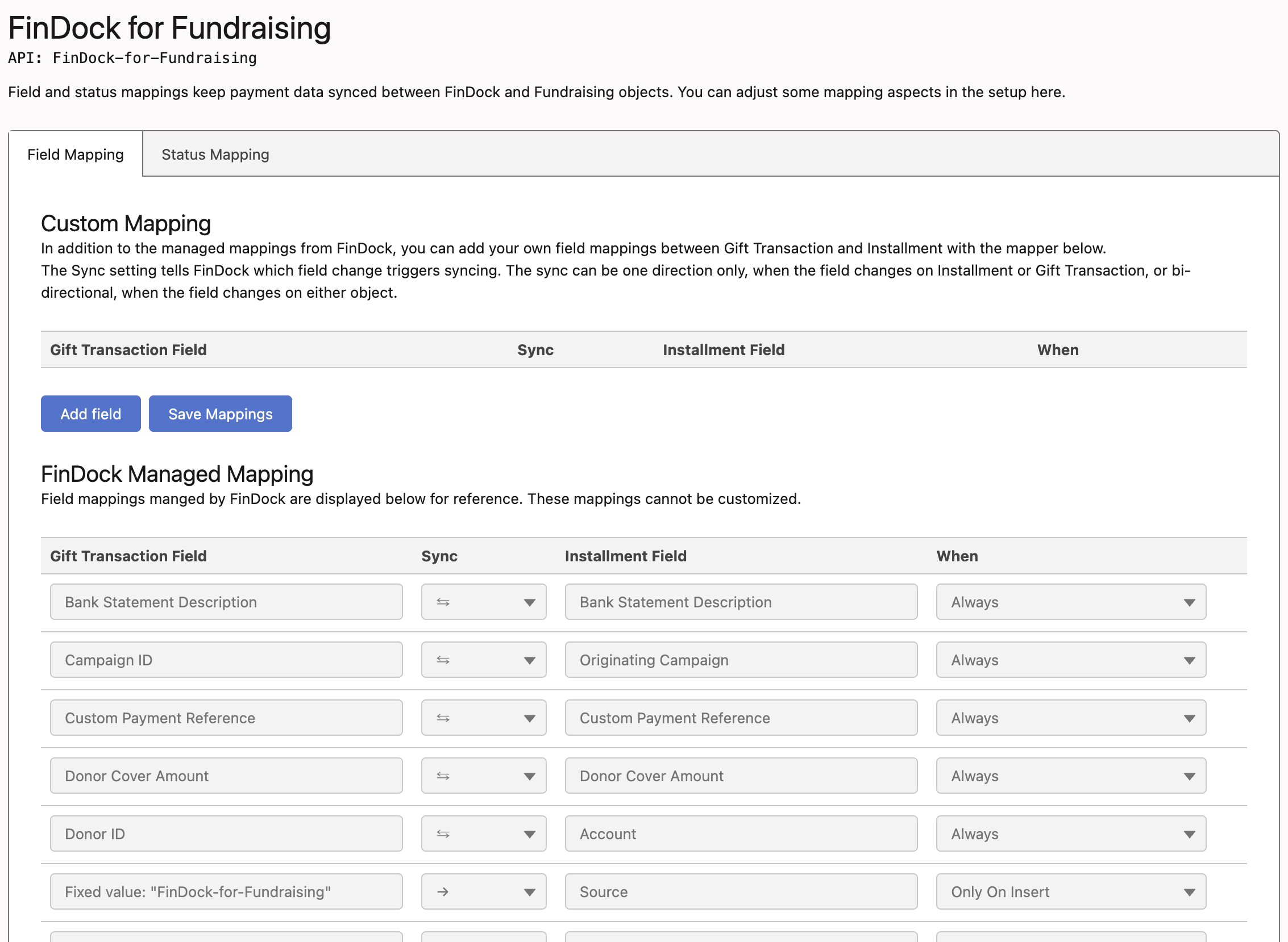
You can create custom mappings for any field except formula fields and fields managed by FinDock (see below). The mappings only apply to installments with record type Receivable. Other installment record types are excluded.
Before you start, carefully consider the sync direction for each mapping. Two-way syncing requires more processing power. Using many two-way sync mappings can have a noticeable impact on performance. Use one-way syncing whenever possible.
FinDock cannot guarantee that every possible mapping works in practice due to all the configurations and customizations an org may have. Thoroughly test mapping before using it in production.
To add a custom Gift Transaction - Installment mapping:
- Launch the FinDock app and click the FiDock Setup tab.
- Click Sources in the left-hand menu and then click the Fundraising entry on the Installed tab.
- Click the Field Mapping tab.
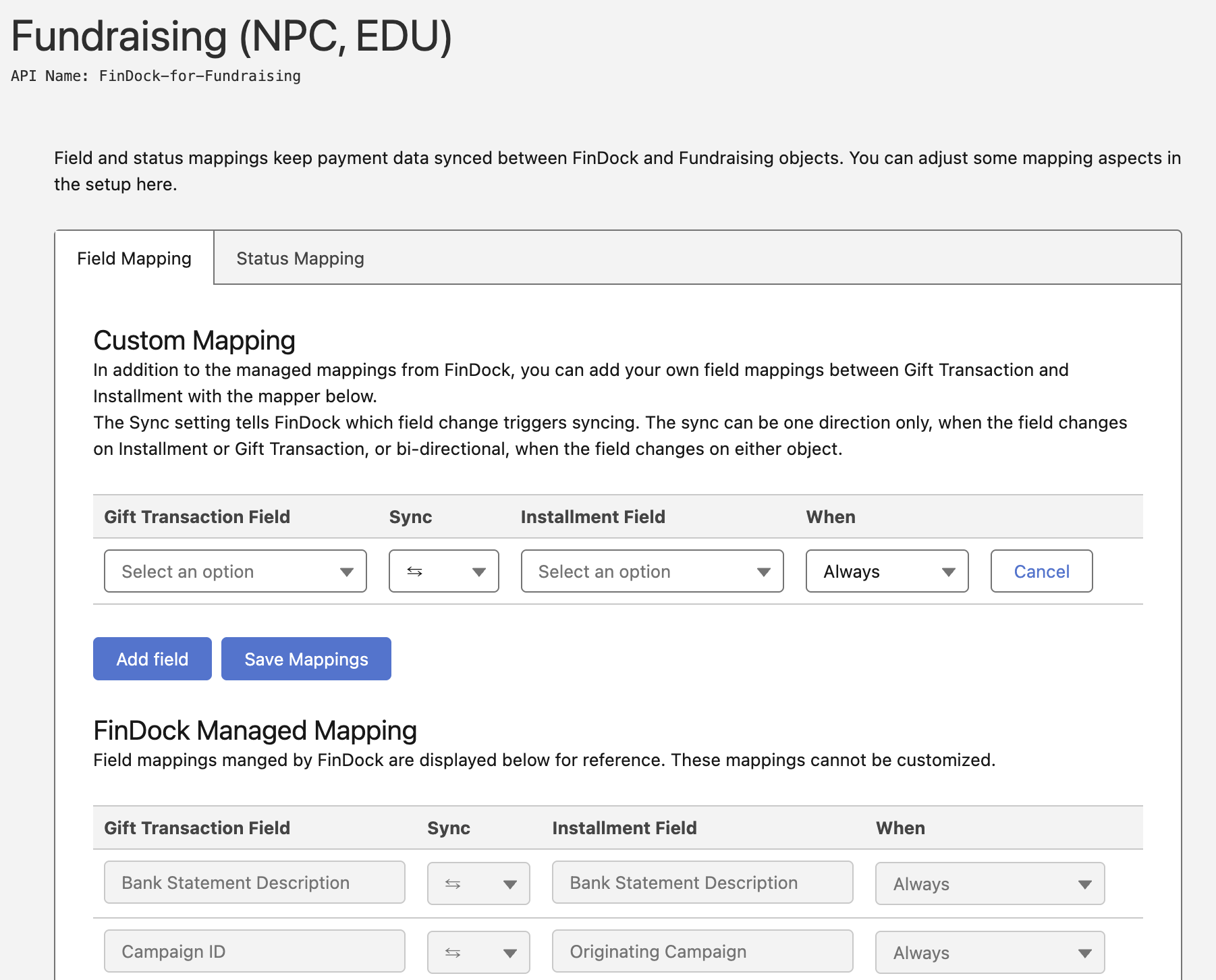
- Click Add field to add a custom mapping.
- Select an Gift Transaction field to map from the list of available fields.
- Select the sync direction:
←: Only sync when the field changes on Installment
→: Only sync when the field changes on Gift Transaction
⇆: Sync when the field changes on either Installment or Gift Transaction - Select the Installment field to map to the selected Gift Transaction field.
- Select the type:
Always: Sync both on inserts and updates. Only On Insert: Sync only on insert actions. - Click Save to save the new custom mapping.
- Use the Delete button to delete a custom mapping if needed.
Some fields are managed by FinDock. These mappings are included in the FinDock solution and cannot be further customized.
Gift Transaction and Installment Status values are defined by the Status Mapping configuration and cannot be modified.
| Gift Transaction Field | Installment Field | Direction | Type |
|---|---|---|---|
| Bank Statement Description | Bank Statement Description (cpm__Bank_Statement_Description__c) | ⇆ | Always |
| Campaign ID | Originating Campaign (cpm__Originating_Campaign__c) | ⇆ | Always |
| Custom Payment Reference | Custom Payment Reference (cpm__Custom_Payment_Reference__c) | ⇆ | Always |
| Donor Cover Amount | Donor Cover Amount (fdff__DonorCoverAmount__c) | ⇆ | Always |
| Donor ID | Account (cpm__Account__c) | ⇆ | Always |
| Fixed value "FinDock-for-Fundraising" | Source (cpm__Source__c) | → | Only On Insert |
| Generated Payment QR | Payment QR (cpm__Payment_QR__c) | ⇆ | Always |
| Generated Payment Reference | Generated Payment Reference (cpm__Generated_Payment_Reference__c) | ⇆ | Always |
| Generated Payment URL | Pay URL (cpm__Pay_Url__c) | ⇆ | Always |
| Gift Transaction ID | Gift Transaction (fdff__GiftTransaction__c) | → | Only On Insert |
| Mandate | Mandate (cpm__Mandate__c) | ⇆ | Always |
| Name | Name (from Account or Contact) + Amount (from Installment) + Date (Due Date or, if collected, Last Collection Date from Installment) | ← | Only On Insert |
| Original Amount | Amount (cpm__Amount__c) | ⇆ | Always |
Payment Method (fdff__Payment_Method__c) | Payment Method (cpm__Payment_Method__c ) | ⇆ | Always |
Payment Method (PaymentMethod) | Payment Method (cpm__Payment_Method__c ) | ← | Always |
| Payment Processor | Payment Processor | (cpm__Payment_Processor__c) | ⇆ |
| Payment Profile | Payment Profile (cpm__Payment_Profile__c) | ⇆ | Always |
| Recurring Payment QR | Recurring Payment QR | (cpm__Recurring_Payment_QR__c) | ⇆ |
| Recurring Payment Reference | Recurring Payment Reference (cpm__Recurring_Payment_Reference__c) | ⇆ | Always |
| Recurring Payment URL | Recurring Pay URL (cpm__Recurring_Pay_Url__c) | ⇆ | Always |
| Status | See Status Mapping | ⇆ | Always |
| Target | Target (cpm__Target__c) | ⇆ | Always |
| Transaction Completion Date | Last Collection Date (cpm__Original_Due_Date__c) | ⇆ | Always |
| Transaction Due Date | Original Due Date (cpm__Original_Due_Date__c) | → | Only On Insert |
| Transaction Due Date | Due Date (cpm__Due_Date__c) | ⇆ | Always |