

Paya
FinDock integrates with Paya, an payment service provider that is today part of Nuvei.
The Paya payment extension is in a closed pilot. Please contact FinDock Support if you would like to participate.
| Multi-merchant | Multi-currency |
|---|---|
| Payment Method | Online Payment Flow | Integration Patterns | Data Entry | One-time | Recurring | Refunds |
|---|---|---|---|---|---|---|
| ACH Direct Debit | Online Redirect | Virtual Terminal | No | |||
| Card | Online Redirect | Virtual Terminal | No |
Pilot scope and limitations
The FinDock integration with Paya is a work in progress. We are adding features to the payment extension during the pilot phase. Currently, Paya for FinDock supports:
- Payment methods
- Card, one-time and recurring
- ACH direct debit, one-time and recurring
- Payment channels
- FinDock Virtual Terminal (MOTO)
Prerequisites
- FinDock is installed and configured.
- Working connections to ProcessingHub and WebHub.
- You have at least one Paya account and the associated credentials.
Install Paya for FinDock
To install the Paya payment extension, the Paya feature pilot needs to be enabled for your org.
To install Paya and activate payment methods:
- Contact FinDock Support and provide your Org Id.
- Wait for confirmation that the Paya feature pilot is enabled.
- Once enabled, go to FinDock Setup and install Paya for FinDock following the standard procedure.
- Activate one or more payment methods following the standard procedure.
Configure Paya for FinDock
To integrate FinDock with Paya, you need to add a merchant account. The merchant account setup requires your Paya account Merchant Id and Merchant Key. These credentials are only available in the email response from Paya when you set up the account.
For ACH sandbox testing, you need to use Merchant Id 173859436515 and Merchant Key P1J2V8P2Q3D8. You can not perform ACH sandbox tests on your own merchant.
To add a merchant account:
- Go to FinDock Setup and select Processors & Methods.
- On the Installed tab, click the Paya processor entry.
- On the Accounts tab, click Add account.
- Enter your Merchant Id and Merchant Key.
- Adjust other settings as needed and click Save.
Configure notifications from Paya
FinDock reconciles Paya payments using asynchronous notifications in the form of a CSV file. This requires you to set up file delivery from Paya.
To configuration notifications:
- Log into the Paya Virtual Terminal with user credentials associated with the merchant account you added above.
- Go to Sage Payment Solutions.
- Adjust the Batch Close Notification Settings:
- Batch Close Email Address: can be any email address, if you use automated Chatter uploads with no email forwarding, then enter the email address for automated uploading
- Batch Close Notifications: select the option “Email Me, Generic Export Format”
- Save your changes and go back to your Salesforce org.
- If you haven’t already, go to FinDock Setup and configure file exchanges.
- Optional: set up automated Chatter uploads.
Using Paya for FinDock
For both credit card and ACH payments, FinDock relies on the Payment Intent Id from FinDock to create the Paya Transaction Order Number value to manage the installments. In the case of recurring ACH payments, FinDock also creates a mandate to capture the payer authorization to collect future installments. However, the mandate itself is controlled by Paya.
You can set up and accept one-time and recurring payments through the following channels:
- Virtual Terminal - MOTO: FinDock component for agents to initiate payments with the payer present.
New one-time payments are automatically processed and collected. For recurring payments, you use payment schedules to collect future installments.
Address Verification Service
Paya supports fraud detection through Address Verification Service (AVS). The option is enabled through your merchant account Paya Exchange settings.
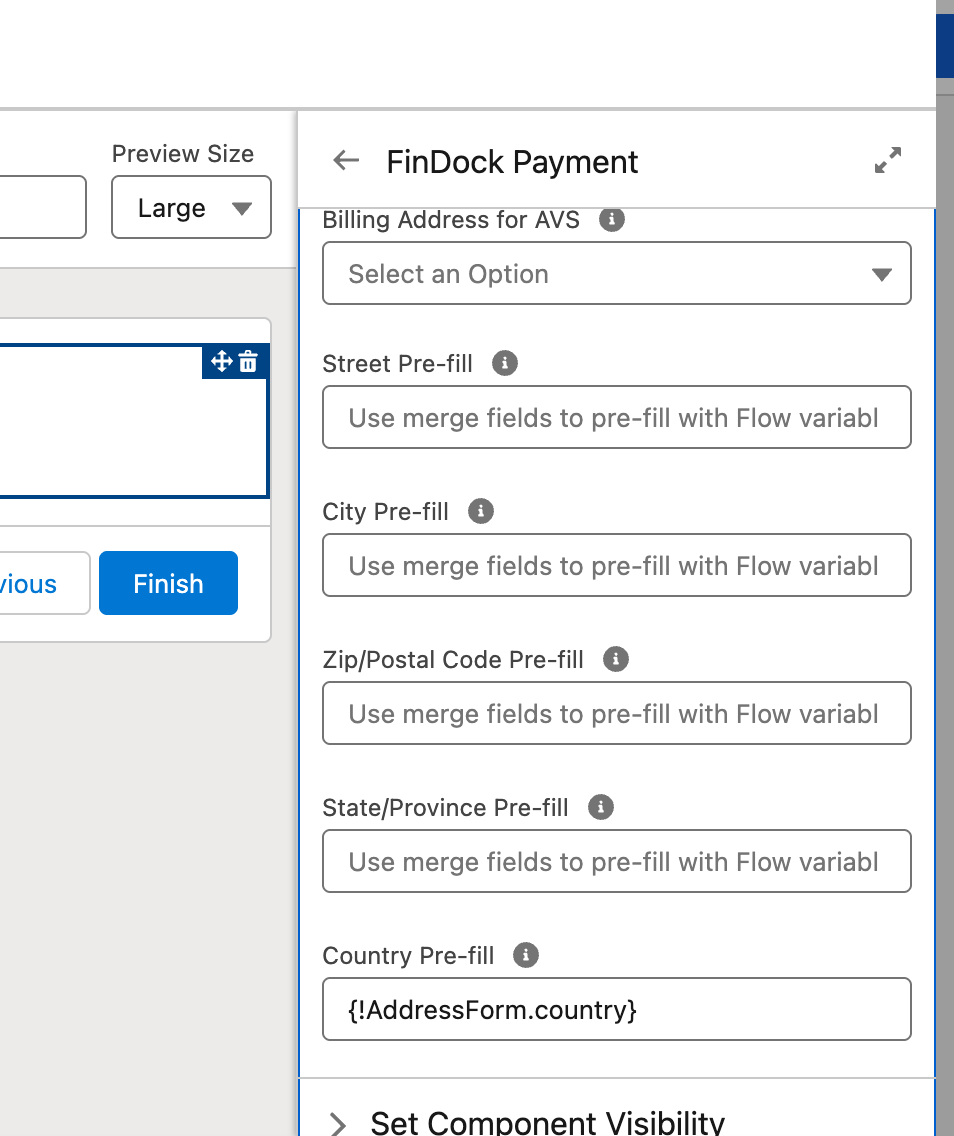
To use AVS in MOTO payments, you enable it through the Payment component configuration. The settings tell the agent if the billing address for AVS is required, not required or optional. In addition, you define which Salesforce fields are used to pre-fill address values.
Please note that the component settings are independent of your Paya merchant account setup. If you have enabled AVS but do not require it on the component, MOTO payments fail.
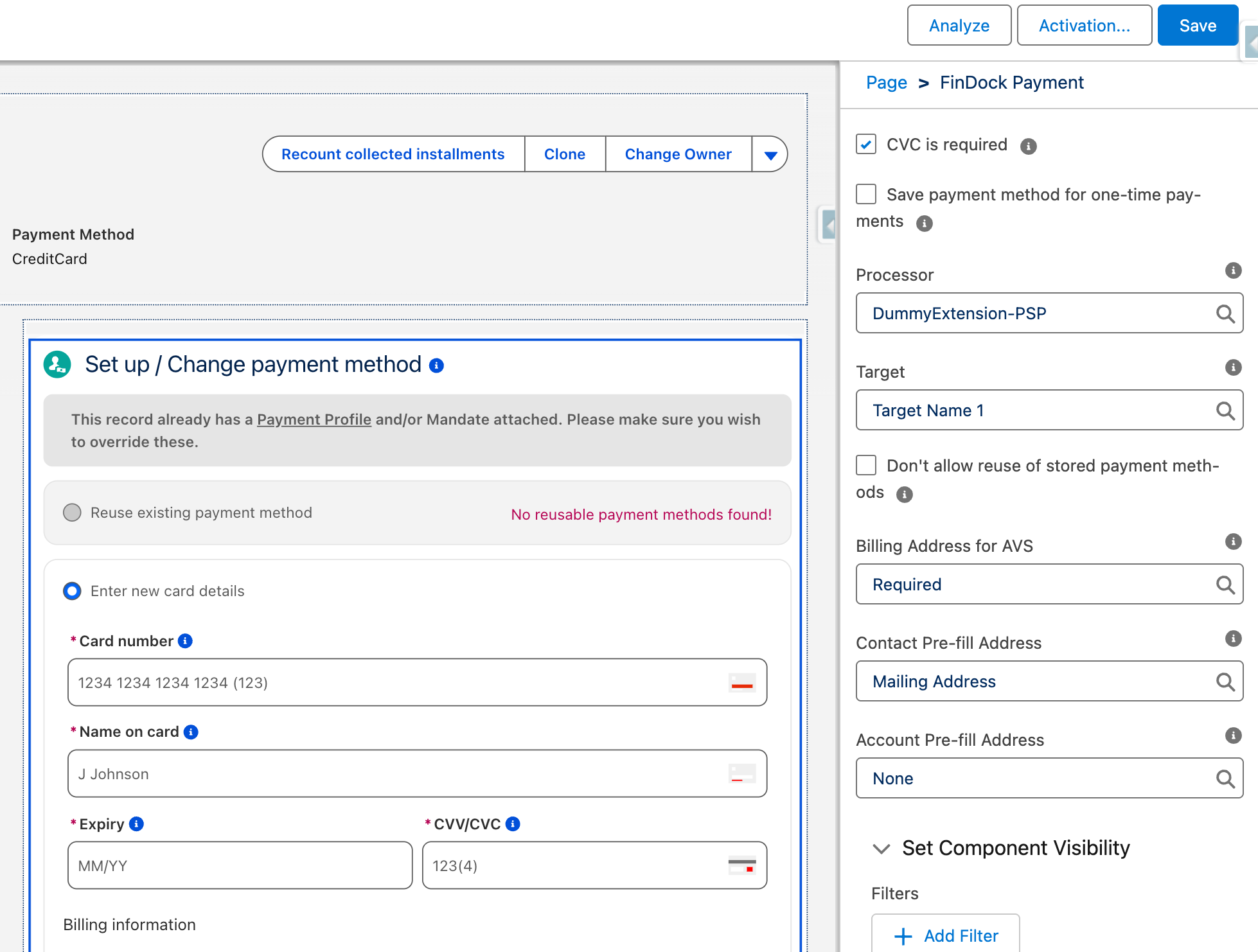
The Payment component can also be used in Flows with AVS enabled. With Flows, merge fields should be used for pre-filling address values.
Refunds with Paya
With the Paya integration, FinDock supports refunds from Salesforce. You can initiate refunds for individual Payment records for a given (receivable) installment. The refund amount can be less than or equal to the payment.
FinDock uses the Refund object to capture refunds. The refund processing, in turn, results in a new Payment record with a negative amount equal to the refund amount. This works much in the same way as installments where the installment collection results in a payment record with a positive amount.
To enable refunds:
- Include the invocable action FinDock Initiate Refund in a custom Flow. The class includes the following parameters:
paymentId: Id of the originating Payment record to refundamount: decimal amount to be refunded (less than or equal to originating payment amount)refundReason: reason for refund (values of customizable picklist field Refund Reason)refundReference: unique generated reference for tracking the refund payment
- Assign the FinDock Core Refunds Run permission set to Salesforce users who need to handle refunds. (This set is included in the FinDock Service Agent permission set group.)
When the action is invoked, FinDock creates an inbound report to validate the refund parameters and create a new Refund record. Once validated, FinDock automatically makes callouts to Paya to start processing, updating the status of the Refund record and creating a new Payment record for the successful refund.
Refund object fields
| Field Name | Description | Name |
|---|---|---|
| Status | Status of the refund transaction. Once the transaction is complete, the Refund record status is set to Completed, and a Payment record is created and linked to the Refund record. | |
| Last Status Reason | Details about the latest Status update for the record, received from the PSP or provided by FinDock. | |
| Amount | The refund amount. This may be less than or equal to Amount of the Originating Payment record amount. | |
| Refund Date | Date the refund was confirmed. | |
| Account | The account that requested the refund, taken from the related original Payment record. | |
| Contact | The contact that requested the refund, taken from the related original Payment record. | |
| Payment Method | The payment method used to pay the refund. | |
| Payment Processor | The payment processor used to process the refund transaction. | |
| Target | The target (merchant account) from which the refund payment is made. | |
| Original Payment Reference | Payment reference of the original payment being refunded, taken from the Payment record of the linked Installment record. | |
| Refund Type | Optional field that can be used to classify refunds. | |
| Originating Payment | The Payment record that represents the original receivable transaction to be refunded. | |
| Refund Payment | The Payment record that represents the refund transaction. | |
| Refund Reason | Customizable picklist of refund reasons. Default values include Customer request, Duplicate and Other. | |
| Comments | Optional free text field for a more detailed explanation of the refund event. This field can be used as input, for example, for later follow up as part of an internal review process. | |
| Refund Reference | Final payment reference for the refund transaction. | |
| Processor Reference | Refund payment reference provided by the PSP. | |
| Installment | Installment record related to the refund request. |
Reconciling Paya payments
Payment reconciliation is file-based using the file Paya sends on a daily basis. Transaction entries are parsed into Inbound Report records that are processed through Guided Matching. For Paya, the Inbound Report type is Paya-for-FinDock with the following subtypes.
| Inbound Report Subtype | Installment Status | | installment.collect | Collected | | installment.expired | Failed | | installment.settled | N/A (status unchanged) | | installment.voided | Failed |